
TL;DR: Markdown is plain text with a few simple punctuation rules.
#,-,**,_is pretty much all you need to know.
The idea
Markdown is not coding. It is text with small signals.
You write the content. The punctuation tells the tool what the content is: a title, a list, a link, a task, a slide, a report.
That is why Markdown works so well with Obsidian (and other editors) and Git. Obsidian reads the files as notes. Git records every change line by line. AI agents get the big picture without begging an app for permission to open each file.
The syntax you actually need
Titles
# Project plan         → page title
## Budget              → section heading
### Q1 targets         → subsection
#### Product X         → add as many subsections as you want
Renders as:
Project plan
Budget
Q1 targets
Product X
Inline formatting
| What you want | Markdown | Rendered |
|---|---|---|
| Bold | **Important** | Important |
| Italic | *Optional* | Optional |
| Inline code | `invoice-2026.md` | invoice-2026.md |
| Link | [Website](https://example.com) | Website |
| Internal link (Obsidian) | [[Acme client notes]] | Acme client notes |
Lists & tasks
| What you want | Markdown | Rendered |
|---|---|---|
| Bullet list | - Send proposal | • Send proposal |
| Numbered list | 1. First step | 1. First step |
| Task | - [ ] Call supplier | ☐ Call supplier |
| Done task | - [x] Contract signed | ☑ Contract signed |
Tables: column headers separated by dashes.
| Client | Status |
|---|---|
| Acme | Proposal sent |
Looks like:
| Client | Status |
|---|---|
| Acme | Proposal sent |
Use one blank line between paragraphs. That small gap is what separates blocks cleanly.
That is enough for most company notes, SOPs, meeting minutes, CRM entries, reports, and AI prompts.
Frontmatter
Frontmatter is the small info block at the top of a file, between --- lines. It stores any kind of structured data like title, date, author, status, tags, document type or any field you can imagine.
It follows a convention called YAML frontmatter: simple key: value pairs that humans, AI, and tools can all read.
Basic example:
---
title: "Client onboarding SOP"
author: "Charles"
status: draft
date: "2026-07-02"
tags:
  - onboarding
  - operations
---
For Marp slides:
---
marp: true
theme: company-theme
title: "Q3 Board Update"
author: "Jordan Reyes"
---
Marp uses that block to know this Markdown file is a slide deck. --- between sections becomes a slide break.
For Pandoc + TeX PDFs:
---
documenttype: report
title: "Q3 Operations Report"
subtitle: "Vault, Pipeline, and Migration Progress"
company: "Acme"
author: "Jordan Reyes"
date: "2026-06-24"
toc: true
---
Pandoc uses that block to render the right branded PDF: report, letter, proposal, or anything your template supports.
See the dedicated guides: Markdown Slide Decks with Marp and Markdown to PDF with Pandoc and TeX.
Going further
You do not need this on day one. But it is useful to know Markdown can grow without becoming heavy.
Formulas
Inline math uses single dollar signs:
$Revenue = Price \times Quantity$Renders as:
Block math uses double dollar signs:
$$
Gross\ Margin = \frac{Revenue - Cost}{Revenue}
$$
Renders as:
Mermaid diagrams
Mermaid turns text into clean diagrams. Useful for processes, org charts, and decision flows.
flowchart TD
  CEO --> Sales
  CEO --> Operations
  Sales --> Lead
  Sales --> Proposal
  Operations --> Delivery
Renders as:
That is the pattern: write the truth once, render it many ways.
SVG graphics
SVG is a vector image format you can embed directly in Markdown. Stays crisp at any size — no pixelation, no extra files.
You do not write SVG by hand. You ask your AI agent to draw it for you. One prompt, one image.
The trade-off versus Mermaid: SVG is a block of markup, not plain text. Mermaid you can read and edit in seconds. SVG you render and forget — harder to tweak by hand.
The same org chart, drawn as SVG:
Obsidian plugins
A plugin is a small add-on that gives Obsidian one extra job: a calendar, a board, a drawing tool, a review mode. You install only the ones you need. The editor stays light by default.
Obsidian has core plugins built in. It also has community plugins made by other people. Kanban and Track Changes are community plugins, so you install and enable them yourself.
Installing a community plugin:
- Settings → Community plugins
- Turn off Restricted mode if Obsidian asks
- Browse → search the plugin name → Install → Enable
One technical detail matters in company vaults: community plugins live in .obsidian/plugins/ inside the vault. If that folder is tracked in Git, one person’s plugin setup can become everyone’s plugin setup. Useful for shared workflows. Annoying for personal preferences.
If you want plugins to stay personal, exclude .obsidian/plugins/ in .gitignore.
Kanban boards
Kanban turns a Markdown file into a drag-and-drop board: lead, demo, trial, signed. Same file. Better view.
We use it for the sales pipeline.
See the Markdown CRM guide for the full setup.
Comments
The lightest review tool is already in Obsidian: comments.
Write a comment between double percent signs:
This paragraph needs a source. %%Check the Q3 report before publishing.%%In Reading view, Obsidian hides the comment. To see it again, switch back to editing mode or Source mode. Clean draft, messy notes still there. Good trick. Several plugins can show them in a side bar.
Review mode with Track Changes
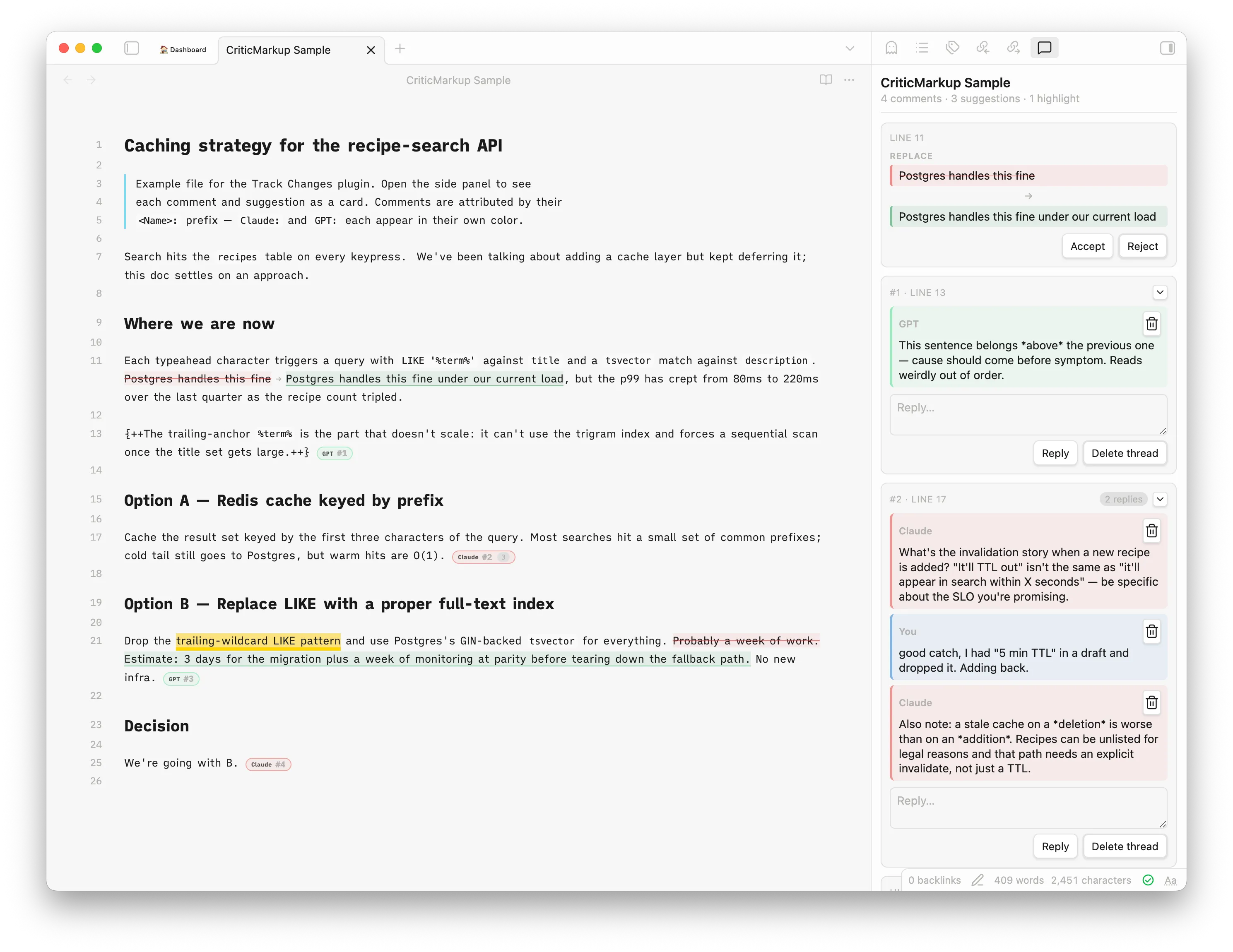
Reality check: comments are enough for quick notes, not full document review. In a company setting, you often need to suggest text, remove text, discuss changes, then accept or reject them later.
That is where the Track Changes community plugin helps. It gives you the Word review habit without the Word hostage file: suggest a sentence, delete a line, leave a comment, accept or reject later.
It uses CriticMarkup syntax, so every suggestion, comment, insertion, and deletion stays inside the Markdown file. You get a side panel for review, but the source remains plain text.
Example in Obsidian:
The point
Markdown is not about prettier punctuation. It is about control.
One file can be:
- A note in Obsidian
- A tracked document in Git
- A slide deck in Marp
- A branded PDF in Pandoc
- A clean input for AI
No export maze. No final-final files. No hostage format.
What’s next
Format learned. Now the file-tracking habit: Git Essentials for Company Files.
Plain text. Plain simple. By Charles Henri Gayot.