
TL;DR: Turn one Markdown file into a branded letter, flyer, or report as PDF — using Pandoc + TeX, no word processor required.
The problem
You migrated the whole company to Markdown. Notes, policies, reports, the CRM — all plain text, all searchable, all yours.
Then a client asks for a signed proposal. On letterhead. As a PDF.
You’re not going back to Word. That was the whole point of leaving. But “print to PDF” from a .md file in your text editor looks like a 1998 printout — no margins, no fonts, no brand.
The solution: Pandoc + TeX
This is the input. One Markdown file with the right frontmatter:
---
documenttype: report
title: "Q3 Operations Report"
subtitle: "Vault, Pipeline, and Migration Progress"
company: "Acme"
author: "Jordan Reyes"
date: "2026-06-24"
toc: true
---

## Executive Summary

The migration is on track. 100% of the legacy Office archive is converted and hash-validated; zero files lost. Reporting time is down 80% week-over-week now that summaries generate from the vault directly.
You get:
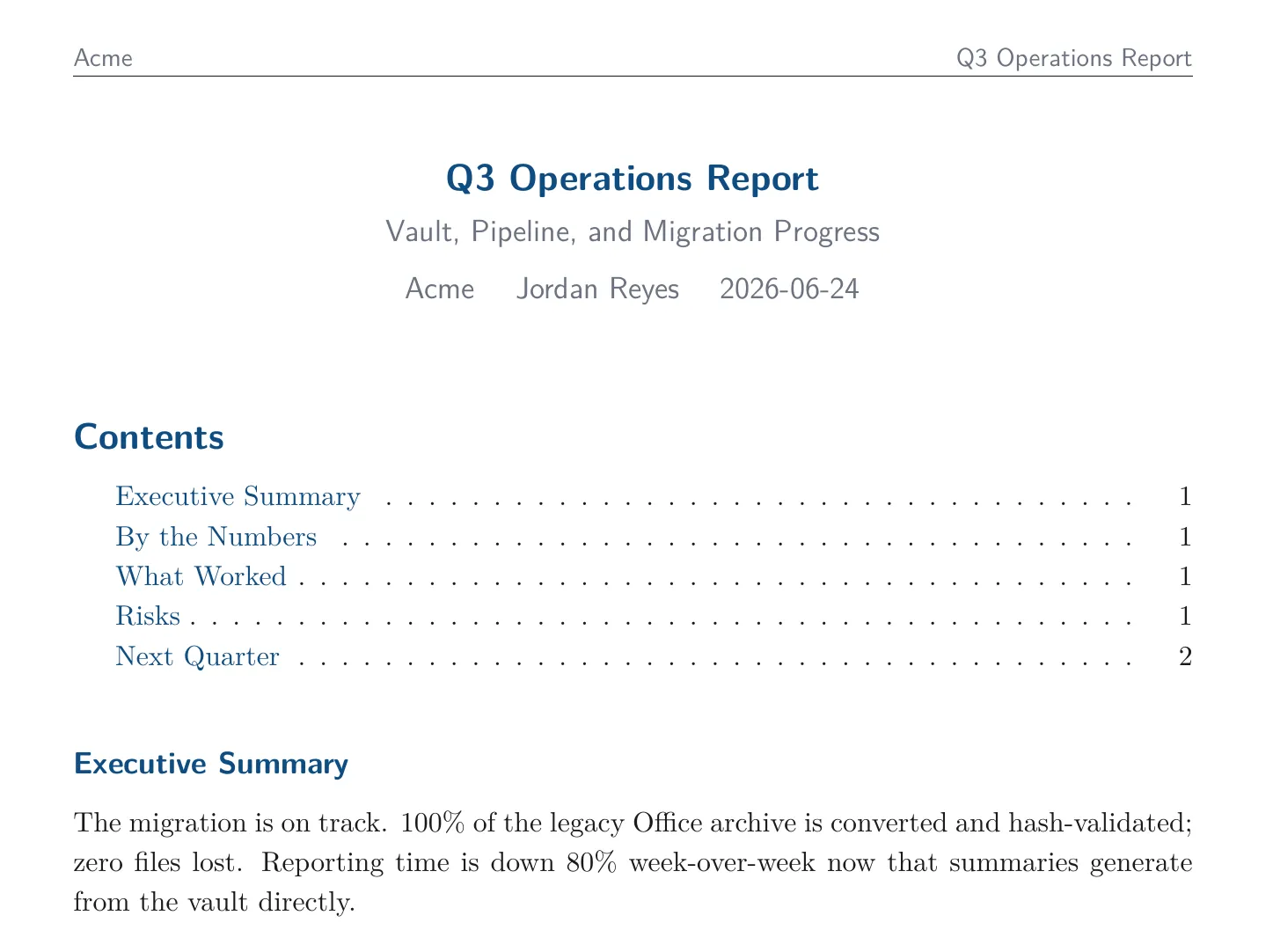 The AI writes this, the template handles the rest — fonts, colors, margins, title block, table of contents. Your Markdown provides the content. The template provides the brand.
No GUI. No “Save As.” No license server.
How to use it
How to use it (one step)
Write a prompt for your AI:
“Write me a proposal letter to Dana Liu at Acme about a Q3 engagement. Export to PDF.”
The AI writes the whole document with correct frontmatter, compiles it through Pandoc + TeX, and hands you the PDF. One instruction, one deliverable.
To make this reliable and repeatable, save the template reference to your AGENTS.md so the AI always knows the theme and export setup.
How to set it up
Two things to install:
-
Pandoc — the universal document converter. Download from pandoc.org or
brew install pandoc. -
A TeX engine — for beautiful PDFs. Three options:
- Linux (recommended minimal):
sudo apt install texlive-xetex texlive-fonts-recommended texlive-latex-recommended - macOS: install MacTeX — large download, zero fuss after
- Windows: install MiKTeX — native TeX distribution for Windows
- Docker (zero install):
docker run --rm -v "$PWD:/data" texlive/texlive xelatex report.tex
- Linux (recommended minimal):
The minimal install handles 90% of documents. Full TeX Live is several gigabytes — only install it if you need advanced packages.
Creating your company theme
One .tex file defines your brand: fonts, colors, margins, header, footer, logo. Every document you ship pulls from the same template.
With the help of your AI agent, create your own pandoc template or grab the starter from the migration toolkit at templates/pandoc/company-theme.tex. It has EDIT markers on every brand knob:
- Colors — find
\definecolor{brand-primary}{HTML}{...}and paste your hex codes - Fonts — change
\setmainfont{...}to your brand font name (requires XeLaTeX — it loads system fonts by name) - Header/footer — the
fancyhdrblock controls your company name, page numbers, and document title - Margins — tweak the
geometryblock for your letterhead layout
The template reads YAML frontmatter straight from your Markdown. A single documenttype: field tells it which layout to use:
documenttype: | What renders |
|---|---|
letter | Letter layout — sender block, recipient address, subject line. Uses sender, recipient, subject fields. |
report | Report layout — centered title, subtitle, author, date, optional table of contents. Uses title, subtitle, toc fields. |
| (none) | Body only — clean document, no special layout. |
A small Lua filter (doc-type.lua) in the templates folder maps documenttype: letter to the letter block and documenttype: report to the report block. Your AI adds the --lua-filter=doc-type.lua flag automatically. You just write the right fields for each type.
Sample files in the same directory show the pattern:
templates/pandoc/letter.md— business letter withdocumenttype: lettertemplates/pandoc/report.md— report withdocumenttype: reporttemplates/pandoc/doc-type.lua— the Lua filter that maps type to layout
Copy them as starting points and edit the fields to match your content.
Save to AGENTS.md
Once the template is working, add a note to your AGENTS.md:
Pandoc + TeX — compile any Markdown file to a branded PDF via
pandoc <file.md> -o <file.pdf> --pdf-engine=xelatex --template=templates/pandoc/company-theme.tex --lua-filter=templates/pandoc/doc-type.lua. Two document types:documenttype: letter(usessender,recipient,subject) ordocumenttype: report(usestitle,subtitle,toc).
Your AI reads this file and applies the right command, theme, and known document types every time.
Why TeX (how it works)
Pandoc converts Markdown to a dozen formats natively — HTML, DOCX, EPUB — with no extra engine. PDF is the exception, because beautiful PDFs need real typesetting: kerning, hyphenation, ligatures, justified text, proper margins.
That’s what TeX does. Pandoc’s PDF pipeline is Markdown → LaTeX → PDF, and the middle step needs a TeX distribution installed.
You could skip it. Pandoc can produce PDF via wkhtmltopdf or headless Chrome. But the output looks like a webpage printed to PDF — because that’s what it is. If you want margins that breathe and a document that looks professionally set, you want TeX. One install, every PDF.
What you gain
- Branded PDFs from plain text. Letters, reports, proposals — all start as Markdown.
- One template, infinite consistency. Rebrand once, everything follows.
- Version-controlled documents. Your proposal’s history is a Git log, not
proposal_FINAL_v7.docx. - AI-collaborative. “Rewrite this report for a less technical audience” is a real prompt when the source is Markdown.
- Portable forever. TeX has outlived every word processor that tried to kill it. Your PDFs will too.
Word to the wise: you don’t need Word.
What’s next
Documents sorted. Now presentations: Markdown Slide Decks with Marp.
Your data. Your rules. Let’s write it that way. By Charles Henri Gayot.