
TL;DR: Marp turns Markdown into slide decks — version-controlled, brandable, and AI-readable — so your presentations stay as editable as your notes.
The problem
You spent an hour getting the fonts right. Your colleague spent another hour fixing the logo. Neither of you can merge your work, search across decks, or see what changed without starting from scratch.
That’s not a missing feature. That’s format lock-in. And you’re paying the subscription.
When your brand updates — new colors, new logo — someone has to reopen every deck by hand and fix them one by one. PowerPoint doesn’t have a “re-theme all” button. It has a “bill you per seat” button. That’s not a feature comparison. That’s a business model.
The format is the problem. The fix is a format that works the way your team does — editable, searchable, mergable.
The solution: Marp
Marp is a tool that turns plain Markdown files into presentation slides — PDF, PPTX, or HTML — from a single command. Start with the basics; reach for the rest only when a slide asks for it.
The basics
A deck is one Markdown file. The info block at the top (YAML frontmatter) switches Marp on and names the theme that paints it, --- on its own line starts a new slide, and everything else is the Markdown you already write. No HTML, no special syntax:
---
marp: true
theme: company-theme
paginate: true
---

# Q3 Board Update

Revenue up. Churn down. AI doing the boring parts.

---

## Wins This Quarter

- Signed 3 new logos
- Cut reporting time by 80%
- Shipped the vault rebrand

| Metric | Last Q | This Q | Change |
| --- | --- | --- | --- |
| ARR | $1.2M | $1.8M | +50% |
| Churn | 4.1% | 2.3% | -44% |
Two slides — a title, then a heading with a list and a table. That covers most of what a real deck needs. You edit it like a note, commit it like code, share it as a PDF or PPTX, and the AI reads the whole thing in milliseconds.
Here is that exact file, rendered:
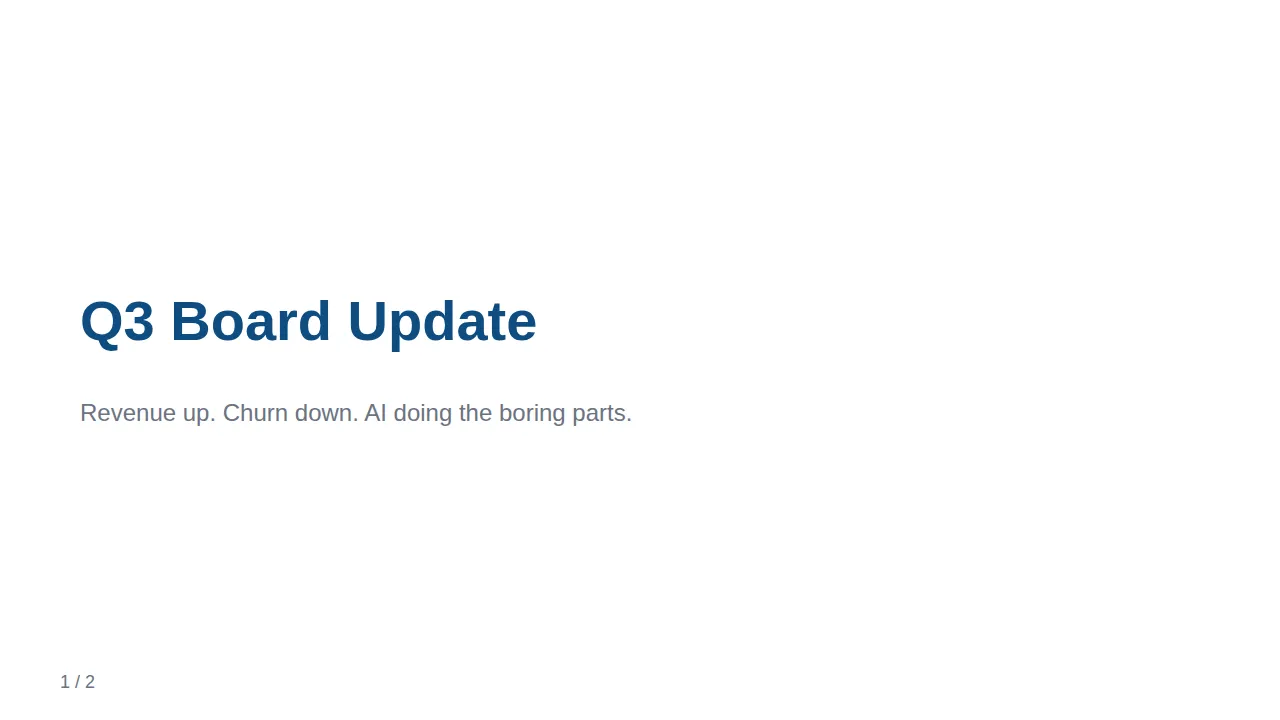
Slide 1 — a heading and a line of text. The blue colour, the muted subtitle, and the 1 / 2 counter are not in the Markdown; they come from the theme.
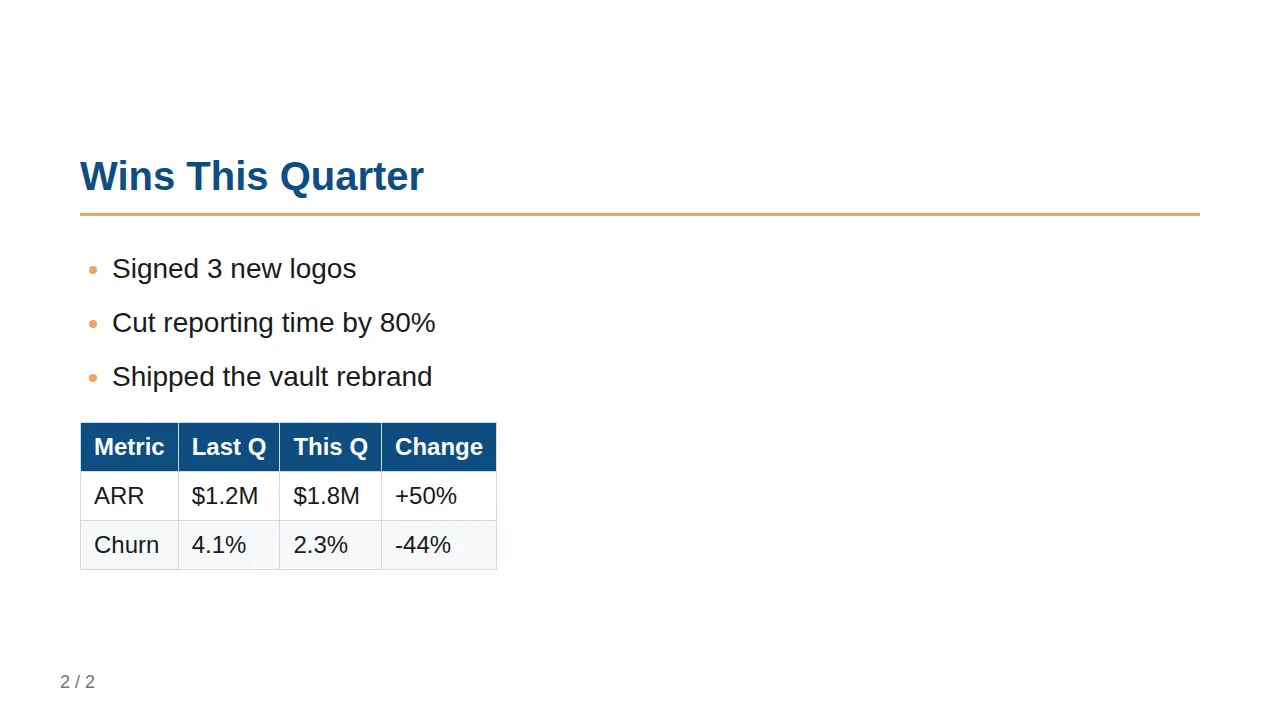
Slide 2 — a heading, a list, and a table. Plain Markdown lays it out; the orange rule, the orange bullets, and the filled table header are the theme doing its job. One line — theme: company-theme — is the difference between this and Marp’s default grey.
Beyond the basics
Plain Markdown plus one theme line carries most decks. The next layer is layout the Markdown grammar can’t express on its own — two columns, a single accent word, a full-bleed title page. For those you drop in a few HTML class hooks. The deck below keeps the same shape as the basics but points at a different theme file (pace-iq instead of company-theme) and uses those hooks — one Markdown structure, a different brand:
---
marp: true
theme: pace-iq
paginate: true
title: Pace IQ Example Trainer Demo
---

<!-- _class: title -->

<div class="eyebrow">Trainer Demo</div>

# The timer built for <span class="accent">racehorse training</span>

Pace IQ

---

# The problem

Stopwatches work until the session gets busy: pace changes, intervals start, and the rider has to keep the horse focused.

---

# The Pace IQ answer

Live pace and interval timing on the rider's wrist, with sessions saved for review afterward.

---

<div class="grid-2">
<div class="panel">
<h3>During the ride</h3>
<p>Live pace, distance, speed, and interval timing.</p>
</div>
<div class="panel">
<h3>After the ride</h3>
<p>Session history, notes, and comparisons over time.</p>
</div>
</div>

---

<div class="quote">Every second counts.</div>

Pace IQ is simple on purpose: the best timer for horse training.
Same rules as before — --- separates slides, headings and paragraphs are plain Markdown. The only new ingredients are the class hooks (grid-2, panel, accent) and the theme: pace-iq line. Here is what those two additions buy you, from the same file:

The eyebrow, the neon accent on “racehorse training”, the locked logo, the black background — none of it is in the Markdown. One class name and one theme line pull it from the CSS.
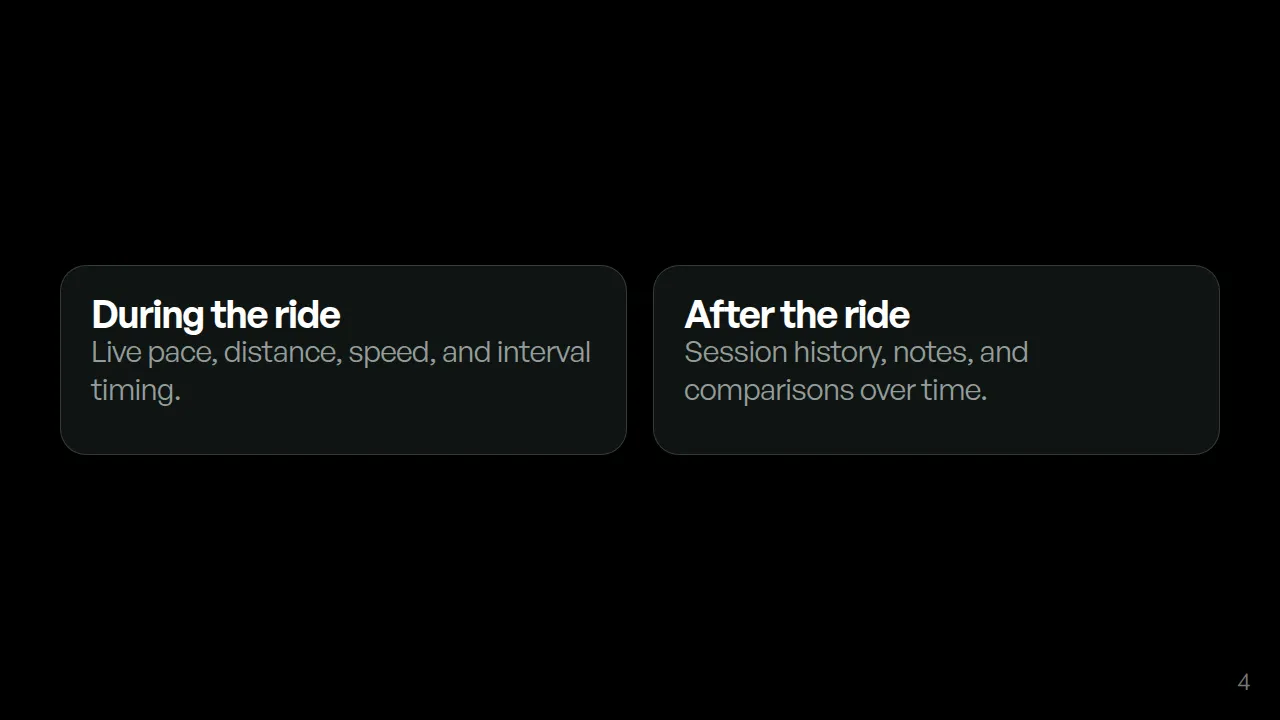
The grid-2 and panel hooks make the two columns; the dark surfaces, the borders, and the corner page number come from the theme.
Write the deck once, swap the theme file, and every slide re-skins — past and future. Building that file is covered in Creating your company theme below; a neutral starter you can copy and re-skin lives in the migration toolkit at templates/marp/example-deck.md.
Why it works
- Plain text, plain truth. Markdown diffs cleanly — a “diff” shows exactly what changed between two versions, line by line. Every change is a permanent record, not a “track changes” mess.
- Prompt-native. Your AI assistant reads the entire deck in milliseconds and can rewrite any slide from one instruction.
- Time-proof. No subscription. No license server. No vendor pivoting to a business model that locks your data. The tool is open-source and runs on your machine.
- One theme, one brand. Change your company colors once in a CSS file (a single document that defines how things look — fonts, colors, logo position, slide numbers). Re-export to PDF or PPTX. Every deck updates automatically — past and future.
How to use it
How to use it (one step)
Write a prompt for your AI:
“Write me a Marp presentation about Q3 results. Keep it to 5 slides — title slide, 3 content slides, closing call-to-action.”
The AI writes the entire deck in Markdown — correct frontmatter, theme reference, slide breaks. You save the file, run one export command, and get your deck. No formatting. No text box wrestling.
To make this repeatable, see the options below — add 2 lines to your AGENTS.md or create a skill file. Next time you say “write a deck about [topic],” the AI already knows your theme, frontmatter, and export setup.
How to set it up
Three ways to run Marp. You’ll likely need two.
Method 1: npx (for AI agents — recommended)
This is how AI agents will use Marp. Requires Node.js. Ask your AI agent to install it for you or download Node.js from nodejs.org (choose the LTS version — it’s the stable one). Then by running the following command from a terminal, your agents will be able to export your slides.
npx @marp-team/marp-cli deck.md -o deck.pdfnpx downloads and runs the tool in one step — no permanent install. The command reads deck.md and exports it as a PDF. The same command works for PowerPoint (-o deck.pptx) or HTML (-o deck.html).
Run it from your terminal, your AI agent, or your automation pipeline.
Method 2a: Obsidian (for quick preview)
Obsidian is a free, open-source note-taking app built on Markdown — your notes are plain files on your computer, no lock-in.
Install the Marp Slides plugin: open Obsidian, go to Settings → Community plugins → Turn off Restricted Mode → Browse, search “Marp Slides”, click Install, then Enable. Now you write and preview decks inside your vault, alongside your notes, CRM, and product specs. The slide preview updates as you type.
Method 2b: VSCodium or Visual Studio Code
If you already use VS Code or VSCodium, install the Marp extension from the marketplace. Write the deck, preview slides side-by-side, export with one click.
Creating your company theme
A Marp theme is one CSS file — it defines fonts, colors, logo position, and slide numbers.
To build one from your existing brand:
- Colors: Open your website or brand guide. Look for hex codes like
#1a1a2eor#ff6b35— these are your palette. - Fonts: Note the font names your brand uses (e.g., “Inter” or “IBM Plex Sans”).
- Logo: Get your logo file (SVG or PNG). Add it as a background image in the CSS.
Place the CSS file next to your deck. Reference it in the frontmatter: theme: your-company-name.
Grab the starter theme from the Marp docs — edit six values and you’re branded.
Ensure repeatability
Option A: 2 lines in your AGENTS.md
Quickest setup. Add this to your AGENTS.md:
To create a deck: write Markdown with
marp: trueandtheme: company-themein frontmatter,---between slides. Export withnpx @marp-team/marp-cli deck.md -o deck.pdf.
Your AI reads AGENTS.md on every task. One mention and it knows.
Option B: Create a skill
If you need more control (theme, frontmatter, export preferences bundled together), create a .md file in your skills folder with the full frontmatter template and theme reference. The AI reads it before generating any deck. Just ask your agent to create it for you.
Frontmatter for collaboration
If your team works on the same decks, add metadata to the YAML frontmatter:
---
marp: true
theme: company-theme
author: "Your Name"
status: draft
reviewers: ["[email protected]"]
version: 1
---
AI agents can search by status (all decks where status: draft), Git tracks who changed what (if you use Git), and everyone knows which version is current.
What you gain
- Decks in minutes, not afternoons. Write once, export to PDF, PPTX, or HTML.
- Brand consistency by default. One CSS file, every deck looks like you.
- Version-controlled history. Every draft is a permanent snapshot. No more
final_v3filename chaos. - AI-collaborative. “Rewrite slide 4 to be punchier” — the AI reads the whole deck and executes that in seconds.
- Portable forever. Markdown outlives every presentation tool ever built.
What’s next
Decks ready. Now social media: Generate Branded Social Posts with Remotion.
Your data. Your rules. Let’s write it that way. By Charles Henri Gayot.